Careers

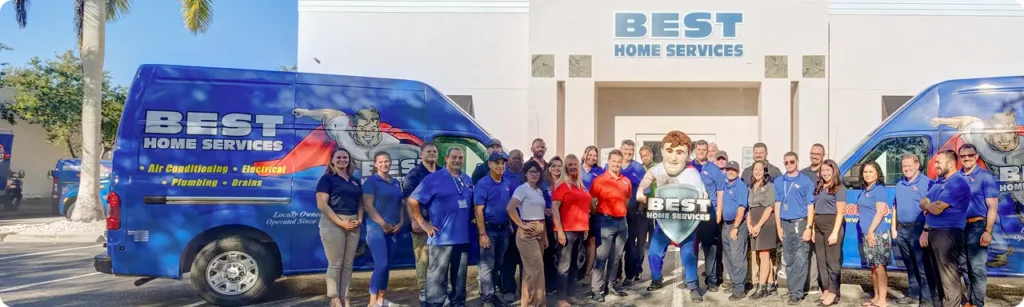
Careers at Best Home Services – Join Our Team

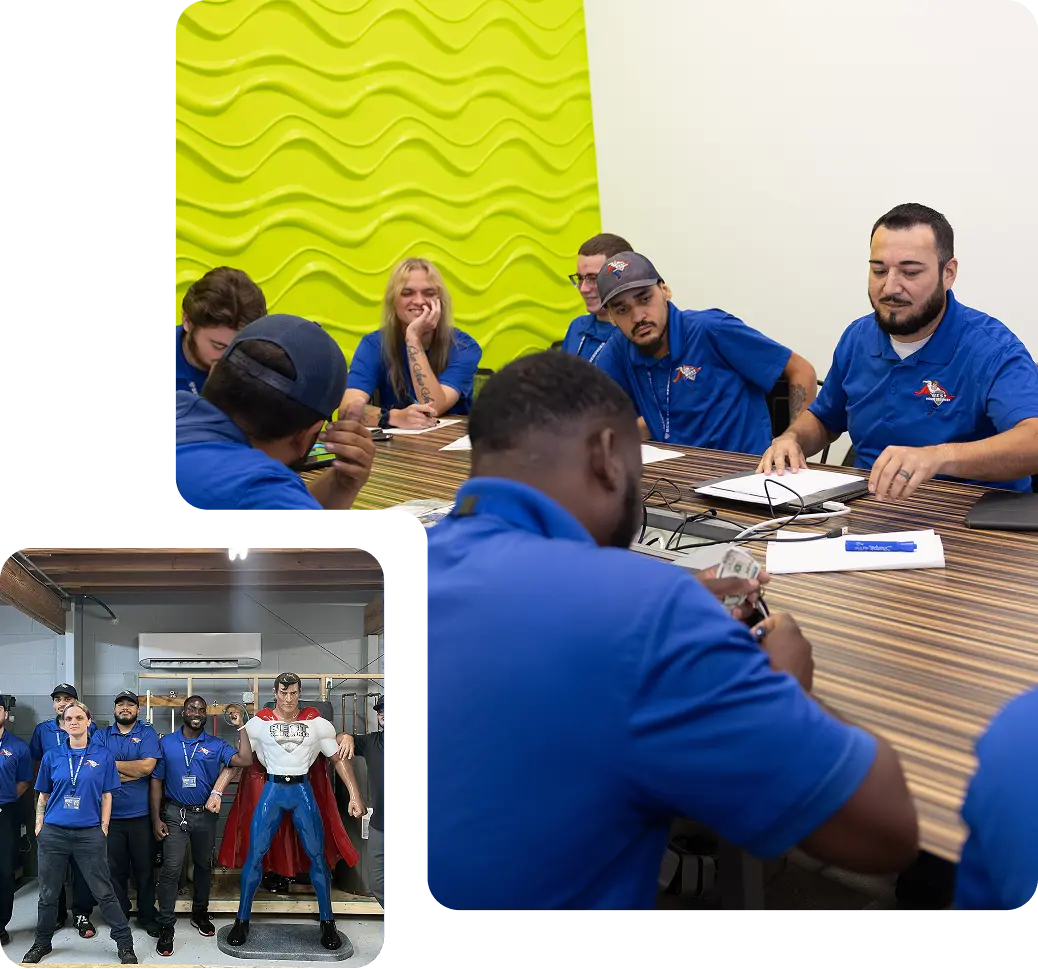
We’re excited you’re exploring career opportunities with Best Home Services! Our team thrives on stability, growth, and a supportive work environment. Whether you’re an experienced technician or starting your career in home services, we invite you to explore our current openings and join a team dedicated to excellence.

Careers at Best Home Services – Join Our Team

We’re excited you’re exploring career opportunities with Best Home Services! Our team thrives on stability, growth, and a supportive work environment. Whether you’re an experienced technician or starting your career in home services, we invite you to explore our current openings and join a team dedicated to excellence.

Explore Our Job Openings

Click a job title to learn more and complete an online application. If you’re unsure which role is the best fit, you can submit your candidate profile to our Talent Community and be considered for current or future opportunities.

Electrical - Service Technician

Earn $65,000–$85,000+ annually. Weekly pay. Team-oriented environment.

Category – Electrical Posted Date – 12/10/2025

HVAC - Service Technician

Sign-on bonus up to $2,000. Weekly pay

Category – HVAC Posted Date – 12/11/2025

Plumbing Service Technician

Earn $80,000–$120,000+ annually. Weekly pay

Category – HVAC Posted Date – 12/05/2025

HVAC - Service Technician

Earn $65,000–$85,000+ annually. Weekly pay. Career growth opportunities.

Category – HVAC Posted Date – 12/05/2025

Plumbing Service Technician

Earn $80,000–$120,000+ annually. Weekly pay.

Category – Plumbing Posted Date – 11/29/2025

Electrical Service Technician

Stability, competitive pay, and career growth in a team environment.

Category – Electrical Posted Date – 11/28/2025

Why Join Best Home Services?

Competitive Pay & Benefits
 Weekly pay, sign-on bonuses, and opportunities to earn more.
Career Growth
Learn, develop, and advance in a team-oriented environment.
Stability
Over 40 years of serving communities in Fort Myers, Naples, and surrounding areas.
Supportive Work Culture
Join a team that values collaboration, professionalism, and excellence.

How to Apply

Step 1

Create Your Profile

Click “Apply” on any job posting to start building your online profile. Some roles allow you to create a profile without applying to a specific job by joining our Talent Community.

Step 2

Submit Your Resume

Upload your resume or fill in your details online. You can also connect your social accounts to streamline the process.

Step 3

Complete Applications

Use your profile to apply for multiple jobs and track your applications in your dashboard.

Tip: Keep your email updated, and check your inbox (and spam folder) for application confirmations or interview invitations.

Application FAQs

Forgot your password?

Log in and click “Update Profile” to make changes.

Yes. Financing is available for most residential standby generators, essential circuit backup systems, automatic transfer switches, and related installation services. During your consultation, we’ll review your system options and confirm which equipment qualifies for financing so you have complete clarity before moving forward.

Yes. Financing is available for most residential standby generators, essential circuit backup systems, automatic transfer switches, and related installation services. During your consultation, we’ll review your system options and confirm which equipment qualifies for financing so you have complete clarity before moving forward.

Yes. Financing is available for most residential standby generators, essential circuit backup systems, automatic transfer switches, and related installation services. During your consultation, we’ll review your system options and confirm which equipment qualifies for financing so you have complete clarity before moving forward.

For detailed FAQs on logging in, completing applications, interview preparation, and references, please visit the Application FAQs section.

Accepting an Offer & Onboarding

Once you’ve been offered a position, you can review, print, or manage your offer letters through your personal dashboard. For onboarding issues or employment-related questions like payroll, benefits, or W-2s, contact Best Home Services directly.

Join Our Talent Community

Not sure which opening is right for you? Submit your profile to our Talent Community and let us match you with opportunities that suit your skills and experience.

Connect with us and start your career today!

Frequently Asked Questions – Application Support

Got stuck? We’re here to help! This FAQ is your first stop for support. If you can’t find the answer here, reach out directly to the company where you are seeking employment.

Review FAQs by Topic

General & Profile

How do I start creating my online profile?

Click Apply for this job online on any listed job and follow the prompts. Some companies allow profile creation without applying to a specific job via Talent Community. After completing the form, you’ll get a confirmation email with a Manage Profile link to access your dashboard. Keep this email—it’s the only way to manage your profile.

Options may include:

  • Uploading your resume (computer or cloud storage)
  • Filling out an online form manually
These options appear on the Basic Information page of the application.

Log in via the company career site using buttons for Facebook, Google, LinkedIn, or Microsoft. Some companies also allow social login via the Apply button.

Logging In

I forgot my password. Can I reset it?

Yes. Click Log back in!, enter your email, click Continue, then select Reset your password. Check your email for directions.

Check your spam or junk folder.

Enter your email during application. The system will tell you if a profile exists. Each email can only be linked to one profile.

Managing & Updating Information

How can I update my profile or resume?

Log in and click Update Your Profile. Make changes and click Update Profile at the bottom. Talent Community profiles are updated via the Manage Profile link in your confirmation email.

Contact the company directly. iCIMS cannot delete or update applicant data for other companies.

Notifications & Communications

How can I receive general job updates?

Some companies allow you to sign up for email updates via the Connect with us or Submit Resume/Talent Community link.

Whitelist company-specific email addresses. Check spam filter instructions for Yahoo, Gmail, AOL, Outlook, or iCloud.

  • Emails: Manage subscriptions in your Dashboard. Avoid unsubscribing from all mass emails.
  • Text messages: Send “stop,” “delete me,” or “opt out” to unsubscribe; “join,” “resubscribe,” or “start” to rejoin.

General & Profile

How do I start creating my online profile?

Click Apply for this job online on any listed job and follow the prompts. Some companies allow profile creation without applying to a specific job via Talent Community. After completing the form, you’ll get a confirmation email with a Manage Profile link to access your dashboard. Keep this email—it’s the only way to manage your profile.

Options may include:

  • Uploading your resume (computer or cloud storage)
  • Filling out an online form manually
These options appear on the Basic Information page of the application.

Log in via the company career site using buttons for Facebook, Google, LinkedIn, or Microsoft. Some companies also allow social login via the Apply button.

Logging In

I forgot my password. Can I reset it?

Yes. Click Log back in!, enter your email, click Continue, then select Reset your password. Check your email for directions.

Check your spam or junk folder.

Enter your email during application. The system will tell you if a profile exists. Each email can only be linked to one profile.

Managing & Updating Information

How can I update my profile or resume?

Log in and click Update Your Profile. Make changes and click Update Profile at the bottom. Talent Community profiles are updated via the Manage Profile link in your confirmation email.

Contact the company directly. iCIMS cannot delete or update applicant data for other companies.

Notifications & Communications

How can I receive general job updates?

Some companies allow you to sign up for email updates via the Connect with us or Submit Resume/Talent Community link.

Whitelist company-specific email addresses. Check spam filter instructions for Yahoo, Gmail, AOL, Outlook, or iCloud.

  • Emails: Manage subscriptions in your Dashboard. Avoid unsubscribing from all mass emails.
  • Text messages: Send “stop,” “delete me,” or “opt out” to unsubscribe; “join,” “resubscribe,” or “start” to rejoin.

General & Profile

How do I start creating my online profile?

Click Apply for this job online on any listed job and follow the prompts. Some companies allow profile creation without applying to a specific job via Talent Community. After completing the form, you’ll get a confirmation email with a Manage Profile link to access your dashboard. Keep this email—it’s the only way to manage your profile.

Options may include:

  • Uploading your resume (computer or cloud storage)
  • Filling out an online form manually
These options appear on the Basic Information page of the application.

Log in via the company career site using buttons for Facebook, Google, LinkedIn, or Microsoft. Some companies also allow social login via the Apply button.

Logging In

I forgot my password. Can I reset it?

Yes. Click Log back in!, enter your email, click Continue, then select Reset your password. Check your email for directions.

Check your spam or junk folder.

Enter your email during application. The system will tell you if a profile exists. Each email can only be linked to one profile.

Managing & Updating Information

How can I update my profile or resume?

Log in and click Update Your Profile. Make changes and click Update Profile at the bottom. Talent Community profiles are updated via the Manage Profile link in your confirmation email.

Contact the company directly. iCIMS cannot delete or update applicant data for other companies.

Notifications & Communications

How can I receive general job updates?

Some companies allow you to sign up for email updates via the Connect with us or Submit Resume/Talent Community link.

Whitelist company-specific email addresses. Check spam filter instructions for Yahoo, Gmail, AOL, Outlook, or iCloud.

  • Emails: Manage subscriptions in your Dashboard. Avoid unsubscribing from all mass emails.
  • Text messages: Send “stop,” “delete me,” or “opt out” to unsubscribe; “join,” “resubscribe,” or “start” to rejoin.

General & Profile

How do I start creating my online profile?

Click Apply for this job online on any listed job and follow the prompts. Some companies allow profile creation without applying to a specific job via Talent Community. After completing the form, you’ll get a confirmation email with a Manage Profile link to access your dashboard. Keep this email—it’s the only way to manage your profile.

Options may include:

  • Uploading your resume (computer or cloud storage)
  • Filling out an online form manually
These options appear on the Basic Information page of the application.

Log in via the company career site using buttons for Facebook, Google, LinkedIn, or Microsoft. Some companies also allow social login via the Apply button.

Logging In

I forgot my password. Can I reset it?

Yes. Click Log back in!, enter your email, click Continue, then select Reset your password. Check your email for directions.

Check your spam or junk folder.

Enter your email during application. The system will tell you if a profile exists. Each email can only be linked to one profile.

Managing & Updating Information

How can I update my profile or resume?

Log in and click Update Your Profile. Make changes and click Update Profile at the bottom. Talent Community profiles are updated via the Manage Profile link in your confirmation email.

Contact the company directly. iCIMS cannot delete or update applicant data for other companies.

Notifications & Communications

How can I receive general job updates?

Some companies allow you to sign up for email updates via the Connect with us or Submit Resume/Talent Community link.

Whitelist company-specific email addresses. Check spam filter instructions for Yahoo, Gmail, AOL, Outlook, or iCloud.

  • Emails: Manage subscriptions in your Dashboard. Avoid unsubscribing from all mass emails.
  • Text messages: Send “stop,” “delete me,” or “opt out” to unsubscribe; “join,” “resubscribe,” or “start” to rejoin.

General & Profile

How do I start creating my online profile?

Click Apply for this job online on any listed job and follow the prompts. Some companies allow profile creation without applying to a specific job via Talent Community. After completing the form, you’ll get a confirmation email with a Manage Profile link to access your dashboard. Keep this email—it’s the only way to manage your profile.

Options may include:

  • Uploading your resume (computer or cloud storage)
  • Filling out an online form manually
These options appear on the Basic Information page of the application.

Log in via the company career site using buttons for Facebook, Google, LinkedIn, or Microsoft. Some companies also allow social login via the Apply button.

Logging In

I forgot my password. Can I reset it?

Yes. Click Log back in!, enter your email, click Continue, then select Reset your password. Check your email for directions.

Check your spam or junk folder.

Enter your email during application. The system will tell you if a profile exists. Each email can only be linked to one profile.

Managing & Updating Information

How can I update my profile or resume?

Log in and click Update Your Profile. Make changes and click Update Profile at the bottom. Talent Community profiles are updated via the Manage Profile link in your confirmation email.

Contact the company directly. iCIMS cannot delete or update applicant data for other companies.

Notifications & Communications

How can I receive general job updates?

Some companies allow you to sign up for email updates via the Connect with us or Submit Resume/Talent Community link.

Whitelist company-specific email addresses. Check spam filter instructions for Yahoo, Gmail, AOL, Outlook, or iCloud.

  • Emails: Manage subscriptions in your Dashboard. Avoid unsubscribing from all mass emails.
  • Text messages: Send “stop,” “delete me,” or “opt out” to unsubscribe; “join,” “resubscribe,” or “start” to rejoin.

General & Profile

How do I start creating my online profile?

Click Apply for this job online on any listed job and follow the prompts. Some companies allow profile creation without applying to a specific job via Talent Community. After completing the form, you’ll get a confirmation email with a Manage Profile link to access your dashboard. Keep this email—it’s the only way to manage your profile.

Options may include:

  • Uploading your resume (computer or cloud storage)
  • Filling out an online form manually
These options appear on the Basic Information page of the application.

Log in via the company career site using buttons for Facebook, Google, LinkedIn, or Microsoft. Some companies also allow social login via the Apply button.

Logging In

I forgot my password. Can I reset it?

Yes. Click Log back in!, enter your email, click Continue, then select Reset your password. Check your email for directions.

Check your spam or junk folder.

Enter your email during application. The system will tell you if a profile exists. Each email can only be linked to one profile.

Managing & Updating Information

How can I update my profile or resume?

Log in and click Update Your Profile. Make changes and click Update Profile at the bottom. Talent Community profiles are updated via the Manage Profile link in your confirmation email.

Contact the company directly. iCIMS cannot delete or update applicant data for other companies.

Notifications & Communications

How can I receive general job updates?

Some companies allow you to sign up for email updates via the Connect with us or Submit Resume/Talent Community link.

Whitelist company-specific email addresses. Check spam filter instructions for Yahoo, Gmail, AOL, Outlook, or iCloud.

  • Emails: Manage subscriptions in your Dashboard. Avoid unsubscribing from all mass emails.
  • Text messages: Send “stop,” “delete me,” or “opt out” to unsubscribe; “join,” “resubscribe,” or “start” to rejoin.

General & Profile

How do I start creating my online profile?

Click Apply for this job online on any listed job and follow the prompts. Some companies allow profile creation without applying to a specific job via Talent Community. After completing the form, you’ll get a confirmation email with a Manage Profile link to access your dashboard. Keep this email—it’s the only way to manage your profile.

Options may include:

  • Uploading your resume (computer or cloud storage)
  • Filling out an online form manually
These options appear on the Basic Information page of the application.

Log in via the company career site using buttons for Facebook, Google, LinkedIn, or Microsoft. Some companies also allow social login via the Apply button.

Logging In

I forgot my password. Can I reset it?

Yes. Click Log back in!, enter your email, click Continue, then select Reset your password. Check your email for directions.

Check your spam or junk folder.

Enter your email during application. The system will tell you if a profile exists. Each email can only be linked to one profile.

Managing & Updating Information

How can I update my profile or resume?

Log in and click Update Your Profile. Make changes and click Update Profile at the bottom. Talent Community profiles are updated via the Manage Profile link in your confirmation email.

Contact the company directly. iCIMS cannot delete or update applicant data for other companies.

Notifications & Communications

How can I receive general job updates?

Some companies allow you to sign up for email updates via the Connect with us or Submit Resume/Talent Community link.

Whitelist company-specific email addresses. Check spam filter instructions for Yahoo, Gmail, AOL, Outlook, or iCloud.

  • Emails: Manage subscriptions in your Dashboard. Avoid unsubscribing from all mass emails.
  • Text messages: Send “stop,” “delete me,” or “opt out” to unsubscribe; “join,” “resubscribe,” or “start” to rejoin.

General & Profile

How do I start creating my online profile?

Click Apply for this job online on any listed job and follow the prompts. Some companies allow profile creation without applying to a specific job via Talent Community. After completing the form, you’ll get a confirmation email with a Manage Profile link to access your dashboard. Keep this email—it’s the only way to manage your profile.

Options may include:

  • Uploading your resume (computer or cloud storage)
  • Filling out an online form manually
These options appear on the Basic Information page of the application.

Log in via the company career site using buttons for Facebook, Google, LinkedIn, or Microsoft. Some companies also allow social login via the Apply button.

Logging In

I forgot my password. Can I reset it?

Yes. Click Log back in!, enter your email, click Continue, then select Reset your password. Check your email for directions.

Check your spam or junk folder.

Enter your email during application. The system will tell you if a profile exists. Each email can only be linked to one profile.

Managing & Updating Information

How can I update my profile or resume?

Log in and click Update Your Profile. Make changes and click Update Profile at the bottom. Talent Community profiles are updated via the Manage Profile link in your confirmation email.

Contact the company directly. iCIMS cannot delete or update applicant data for other companies.

Notifications & Communications

How can I receive general job updates?

Some companies allow you to sign up for email updates via the Connect with us or Submit Resume/Talent Community link.

Whitelist company-specific email addresses. Check spam filter instructions for Yahoo, Gmail, AOL, Outlook, or iCloud.

  • Emails: Manage subscriptions in your Dashboard. Avoid unsubscribing from all mass emails.
  • Text messages: Send “stop,” “delete me,” or “opt out” to unsubscribe; “join,” “resubscribe,” or “start” to rejoin.

General & Profile

How do I start creating my online profile?

Click Apply for this job online on any listed job and follow the prompts. Some companies allow profile creation without applying to a specific job via Talent Community. After completing the form, you’ll get a confirmation email with a Manage Profile link to access your dashboard. Keep this email—it’s the only way to manage your profile.

Options may include:

  • Uploading your resume (computer or cloud storage)
  • Filling out an online form manually
These options appear on the Basic Information page of the application.

Log in via the company career site using buttons for Facebook, Google, LinkedIn, or Microsoft. Some companies also allow social login via the Apply button.

Logging In

I forgot my password. Can I reset it?

Yes. Click Log back in!, enter your email, click Continue, then select Reset your password. Check your email for directions.

Check your spam or junk folder.

Enter your email during application. The system will tell you if a profile exists. Each email can only be linked to one profile.

Managing & Updating Information

How can I update my profile or resume?

Log in and click Update Your Profile. Make changes and click Update Profile at the bottom. Talent Community profiles are updated via the Manage Profile link in your confirmation email.

Contact the company directly. iCIMS cannot delete or update applicant data for other companies.

Notifications & Communications

How can I receive general job updates?

Some companies allow you to sign up for email updates via the Connect with us or Submit Resume/Talent Community link.

Whitelist company-specific email addresses. Check spam filter instructions for Yahoo, Gmail, AOL, Outlook, or iCloud.

  • Emails: Manage subscriptions in your Dashboard. Avoid unsubscribing from all mass emails.
  • Text messages: Send “stop,” “delete me,” or “opt out” to unsubscribe; “join,” “resubscribe,” or “start” to rejoin.

General & Profile

How do I start creating my online profile?

Click Apply for this job online on any listed job and follow the prompts. Some companies allow profile creation without applying to a specific job via Talent Community. After completing the form, you’ll get a confirmation email with a Manage Profile link to access your dashboard. Keep this email—it’s the only way to manage your profile.

Options may include:

  • Uploading your resume (computer or cloud storage)
  • Filling out an online form manually
These options appear on the Basic Information page of the application.

Log in via the company career site using buttons for Facebook, Google, LinkedIn, or Microsoft. Some companies also allow social login via the Apply button.

Logging In

I forgot my password. Can I reset it?

Yes. Click Log back in!, enter your email, click Continue, then select Reset your password. Check your email for directions.

Check your spam or junk folder.

Enter your email during application. The system will tell you if a profile exists. Each email can only be linked to one profile.

Managing & Updating Information

How can I update my profile or resume?

Log in and click Update Your Profile. Make changes and click Update Profile at the bottom. Talent Community profiles are updated via the Manage Profile link in your confirmation email.

Contact the company directly. iCIMS cannot delete or update applicant data for other companies.

Notifications & Communications

How can I receive general job updates?

Some companies allow you to sign up for email updates via the Connect with us or Submit Resume/Talent Community link.

Whitelist company-specific email addresses. Check spam filter instructions for Yahoo, Gmail, AOL, Outlook, or iCloud.

  • Emails: Manage subscriptions in your Dashboard. Avoid unsubscribing from all mass emails.
  • Text messages: Send “stop,” “delete me,” or “opt out” to unsubscribe; “join,” “resubscribe,” or “start” to rejoin.